 Homeling
Homeling on your iPhone
Pair your iPhone with your Mac, and what it can do when you're away from your desk.
What you need
- Homeling on your Mac, and the Homeling app on your iPhone. The iPhone app comes after the Mac app.
- Both on the same Wi-Fi when you pair. The two talk to each other directly; nothing goes through a server of ours.
Pair your iPhone
- On your Mac: Settings → iPhone, turn on “Let paired iPhones connect”, then click Pair an iPhone…. A code and six words appear, good for five minutes.
- On your iPhone: open Homeling and allow it to find devices on your network. Your Mac appears in the list. Scan the code, or type the six words.
- Done. The Mac says your iPhone is paired, and the phone opens its chat.

Pairing pins your Mac's key on your phone and your phone's key on your Mac; after that, everything travels over an encrypted link between the two.
What the iPhone app does
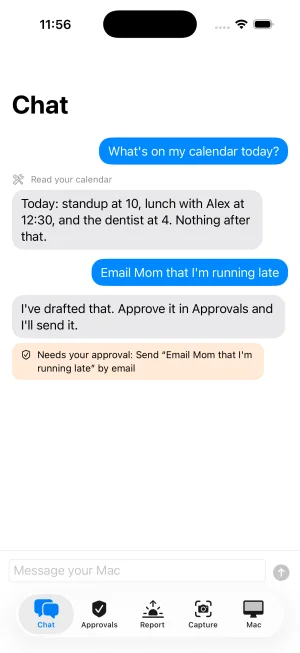
- Chat: ask your Mac anything, by typing or with the microphone. Replies come from the model on your Mac.
- Approvals: say yes or no to things waiting for your OK. Your answer is bound to exactly that action.
- Report: your morning report, with an eye that hides private lines.
- Capture: send a note, a to-do, a voice note or a business card, or ask about a photo, like what you're wearing: it's asked in Chat and your Mac answers.
- Mac: which Mac you're paired with, and whether it's connected.
When your Mac isn't reachable
An orange line at the top says “Your Mac isn't reachable. Captures and messages will wait and send later.” What you send waits on the phone and goes when your Mac is back; cards your Mac raised meanwhile arrive when the app reconnects. There are no notifications yet: open the app to see what's waiting.
Forget, revoke, pair again
- On your iPhone: Mac → Forget this Mac.
- On your Mac: Settings → iPhone → Revoke drops the phone at once and refuses its key until you remove it and pair again.
- Everything off: turn off “Let paired iPhones connect”. Nothing on your Mac listens until it's on.

Or text Homeling
In Homeling: Settings → Texts
In the download from homeling.ai, you can also text Homeling from your phone over iMessage: turn on “Text Homeling from your phone”, and Homeling reads one iMessage thread on your Mac and answers there. Either texts you send to yourself count, or texts to your Mac's own Apple ID from your own number; nobody else, no group chats, and never SMS, because its sender can be faked. In a note to yourself, Homeling's replies start with “Homeling:”. To approve something by text, answer YES or NO with the code it sends.
If pairing doesn't work
- Your Mac isn't in the list: same Wi-Fi? Mac awake, with the pairing code showing? Some guest and office networks stop devices from seeing each other; type the six words and enter your Mac's address and port instead (Settings → iPhone shows the port).
- The local network question never appeared: on the iPhone, Settings → Privacy & Security → Local Network → Homeling.
- The code ran out: click Pair an iPhone… again.